

- Thread Author
- #1
How to Fix Any Internet Connection Problem on Windows: The Ultimate Guide
Introduction
Your internet just stopped working — and you have no idea why. Sound familiar? You are not alone. According to Microsoft support data, network connectivity issues are the number one reason Windows users contact tech support every single year.Whether your WiFi says “No Internet Access,” your Ethernet keeps cutting out, or pages simply refuse to load, a broken connection can grind your day to a halt. The good news? Most internet connection problems on Windows are completely fixable — without calling a technician.
In this ultimate guide, you will learn exactly how to fix any internet connection problem on Windows, step by step. We cover everything from one-click quick fixes to advanced network resets that even IT pros use. Whether you are on Windows 10 or Windows 11, this guide has you covered.
Let’s get your connection back online right now.
Why Internet Connections Break on Windows
Before you start clicking through settings, it helps to understand why your connection failed. Most Windows internet problems fall into a handful of predictable categories — and knowing the cause cuts your troubleshooting time in half.The Most Common Causes of Internet Connection Problems
Internet failures on Windows typically come from one of these sources:- Corrupted network drivers — Outdated or broken drivers prevent your adapter from communicating properly.
- Incorrect IP or DNS settings — Windows sometimes assigns a bad IP address or uses a slow/broken DNS server.
- Router or modem issues — The problem is not always your PC. Sometimes the issue lives in your hardware.
- Windows update conflicts — A recent update occasionally breaks network adapter compatibility.
- Malware or firewall interference — Security software or malicious programs can block your connection silently.
- Power management settings — Windows may put your WiFi adapter to sleep to save power, causing sudden disconnections.
How to Identify Where the Problem Is
Before applying fixes, run this quick mental checklist:- Can other devices connect? If yes, the problem is your Windows PC. If no, the problem is your router or ISP.
- Does wired Ethernet work but WiFi doesn’t? This points to a WiFi adapter or driver issue.
- Is the internet slow instead of completely down? That suggests DNS or congestion problems rather than a full break.
 Pro Tip: Open Command Prompt and type ping 8.8.8.8. If you get replies, your connection is working but your DNS may be broken. If you get “Request timed out,” the problem goes deeper.
 Common Mistake: Many users immediately restart their PC and assume the problem is fixed — only for it to return 10 minutes later. Always identify the root cause before applying fixes.
Quick Fixes to Try First (2026 Checklist)
Before diving into deep troubleshooting, run through these fast fixes. You would be surprised how often one of these resolves the issue in under two minutes.Restart Your Router, Modem, and PC
This solves more internet problems than any other fix. Here is the correct restart sequence:- Turn off your PC.
- Unplug your modem from the power outlet. Wait 30 seconds — not 5, not 10. A full 30 seconds clears the internal memory.
- Unplug your router from the power outlet. Wait another 30 seconds.
- Plug the modem back in and wait for all lights to stabilize (about 60 seconds).
- Plug the router back in and wait for it to fully boot (another 60 seconds).
- Turn on your PC and check the connection.
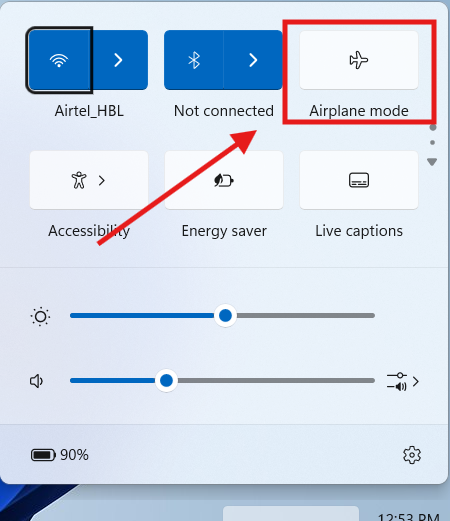
Toggle Airplane Mode On and Off
This is a quick reset for your WiFi adapter and takes less than 10 seconds:- Press Windows + A to open the Action Center.
- Click Airplane Mode to turn it ON.
- Wait 10 seconds.
- Click Airplane Mode again to turn it OFF.
- Wait for Windows to reconnect.
Forget and Reconnect to Your WiFi Network
If your saved WiFi password or settings have become corrupted, forgetting the network forces a clean reconnection:- Click the WiFi icon in the taskbar.
- Right-click your network name.
- Select Forget.
- Click the network again, enter your password, and reconnect.
Check for Windows Update or Antivirus Interference
Sometimes Windows Update or your antivirus program triggers a brief network reset mid-process. Here is how to check:- Press Windows + I to open Settings and go to Windows Update.
- Check whether an update is currently downloading or installing. If yes, wait for it to finish before troubleshooting.
- Temporarily disable your third-party antivirus for 60 seconds and test the connection.
- If the connection restores with antivirus off, add your browser or the affected app to your antivirus exclusion list.
Run the Built-In Windows Network Diagnostics
If none of the above quick steps worked, run Windows’ own network diagnostic:- Click the WiFi or Ethernet icon in the taskbar.
- Click “Troubleshoot problems” (Windows 10) or the “Network & Internet settings” link, then find the troubleshooter (Windows 11).
- Wait while Windows diagnoses the issue and follow any recommended actions.
Pro Tip: If you use a VPN, turn it off completely before troubleshooting. VPNs frequently cause “no internet” errors in Windows even when your connection is actually fine. Common Mistake: People restart only their PC but skip the modem and router. The router holds its own memory and needs a full power cycle — not just a button reset.How to Fix Internet Connection Problems Using Windows Troubleshooter
Windows has a built-in internet troubleshooter that automatically detects and fixes many common network errors. It is not perfect, but it resolves a surprising number of issues with zero manual effort.Running the Internet Connections Troubleshooter on Windows 11
- Press Windows + I to open Settings.
- Go to System → Troubleshoot.
- Click Other troubleshooters.
- Find Internet Connections and click Run.
- Follow the on-screen prompts. Windows will attempt to detect and fix the issue automatically.
- Restart your PC after the troubleshooter completes.
Running the Network Adapter Troubleshooter
If the Internet Connections troubleshooter doesn’t fix it, run the Network Adapter troubleshooter next:- Open Settings → System → Troubleshoot → Other troubleshooters.
- Find Network Adapter and click Run.
- Select which adapter to troubleshoot — choose WiFi or All network adapters.
- Let Windows scan and apply any available fixes.
- Restart your PC and check the connection.
Running the Troubleshooter on Windows 10
- Open Settings → Update & Security → Troubleshoot.
- Click Additional troubleshooters.
- Select Internet Connections → Run the troubleshooter.
- Also run Network Adapter if the first one doesn’t work.
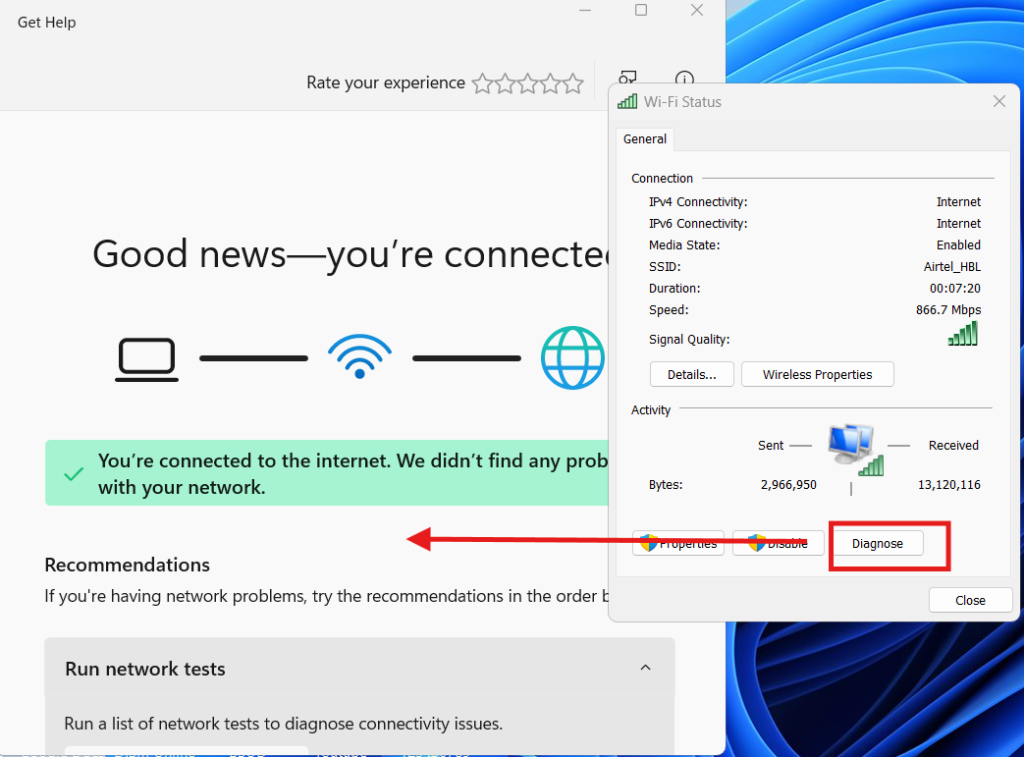 Pro Tip: After running the troubleshooter, check the “View detailed information” link at the end. It often shows a specific error c0d3 — like DNS not responding or default gateway not available — that points you directly to the real fix. Common Mistake: Skipping the troubleshooter because “it never works.” Microsoft has significantly improved the accuracy of Windows 11 troubleshooters. Run it first — it only takes 60 seconds.
Fix Internet Connection Issues by Resetting Network Settings
If the troubleshooter did not fix your internet connection on Windows, resetting the network stack is your next power move. This clears corrupt TCP/IP configurations, flushes DNS, and forces Windows to rebuild its network settings from scratch.How to Reset TCP/IP and Flush DNS (Command Prompt Method)
This is the most effective network reset method, used by IT professionals worldwide:- Press Windows + S and type Command Prompt.
- Right-click Command Prompt and select Run as administrator.
- Type each command below and press Enter after each one:
netsh winsock reset
ipconfig /release
ipconfig /flushdns
ipconfig /renew
- Restart your PC after all commands complete.
How to Use Network Reset in Windows Settings
Windows 11 and 10 also offer a one-click Network Reset option that reinstalls all adapters and resets all networking components:- Open Settings → Network & Internet.
- Scroll down and click Advanced network settings (Windows 11) or Status (Windows 10).
- Find Network Reset and click it.
- Click Reset Now and confirm.
- Your PC will restart automatically.
Pro Tip: After running these commands, change your DNS to Google’s public DNS (8.8.8.8 / 8.8.4.4) or Cloudflare’s (1.1.1.1). This often doubles your DNS resolution speed and prevents future DNS-related outages. Common Mistake: Running only ipconfig /flushdns and skipping the Winsock and TCP/IP reset commands. The flush alone will not fix deeper stack corruption. Always run the full set.How to Fix WiFi Connection Problems on Windows 10 and 11
WiFi problems are the most reported type of internet connection failure on Windows. If your PC sees the WiFi network but cannot connect — or connects but shows “No Internet” — these targeted fixes will resolve it.Fix “No Internet, Secured” WiFi Error
The dreaded “No Internet, secured” message means Windows connected to your router but cannot reach the internet beyond it. Here is how to fix it:- Press Windows + R, type ncpa.cpl, and press Enter. This opens Network Connections.
- Right-click your WiFi adapter and select Properties.
- Double-click Internet Protocol Version 4 (TCP/IPv4).
- Select “Obtain an IP address automatically” and “Obtain DNS server address automatically.”
- Click OK and close all windows.
- Restart your PC and reconnect.
- In the same IPv4 Properties window, select “Use the following DNS server addresses.”
- Set Preferred DNS Server to 8.8.8.8 (Google).
- Set Alternate DNS Server to 8.8.4.4.
- Click OK and reconnect.
Fix Windows 11 WiFi Not Showing Available Networks
If the WiFi list is blank or missing networks entirely:- Press Windows + X and select Device Manager.
- Expand Network Adapters.
- Right-click your WiFi adapter and select Disable device.
- Wait 10 seconds, then right-click again and select Enable device.
- Close Device Manager and check the WiFi list.
- In Device Manager, right-click the WiFi adapter and select Uninstall device.
- Check the box to “Delete the driver software for this device” if it appears.
- Click Action → Scan for hardware changes in the Device Manager menu.
- Windows will automatically reinstall the adapter.
- Restart and reconnect.
Fix WiFi Keeps Dropping on Laptops
If your laptop WiFi connects but then drops every few minutes, power management settings are almost always the culprit:- Open Device Manager → Network Adapters.
- Right-click your WiFi adapter and select Properties.
- Click the Power Management tab.
- Uncheck “Allow the computer to turn off this device to save power.”
- Click OK and restart.
Pro Tip: On Windows 11, also go to Settings → System → Power → Power Mode and switch to Best Performance. Windows throttles WiFi aggressively in power-saving modes, especially on laptops. Common Mistake: Updating your WiFi driver from the Device Manager’s built-in search. Windows rarely finds the correct driver this way. Always download the latest driver directly from your laptop manufacturer’s website (Dell, HP, Lenovo, ASUS, etc.) or your WiFi chip maker (Intel, Qualcomm, Realtek).Fix No Internet Connection Errors Caused by DNS Issues
DNS (Domain Name System) is like the internet’s phone book. When DNS breaks, websites simply refuse to load — even though your actual internet connection is technically fine. This is one of the most misunderstood internet problems on Windows.How to Tell If Your Problem Is DNS-Related
Run these two tests in Command Prompt (run as administrator):- Type ping 8.8.8.8 and press Enter.
- If you get replies → Your internet works. DNS is the problem.
- If you get “Request timed out” → The issue is deeper than DNS.
- Type ping google.com and press Enter.
- If the first ping worked but this one fails → Confirmed DNS problem.
How to Change DNS Servers in Windows
- Open Settings → Network & Internet → WiFi (or Ethernet).
- Click your connection name, then click Edit next to DNS server assignment.
- Switch from Automatic (DHCP) to Manual.
- Enable IPv4.
- Enter your preferred DNS:
- Google: 8.8.8.8 / 8.8.4.4
- Cloudflare: 1.1.1.1 / 1.0.0.1
- OpenDNS: 208.67.222.222 / 208.67.220.220
- Click Save.
Flush and Rebuild the DNS Cache
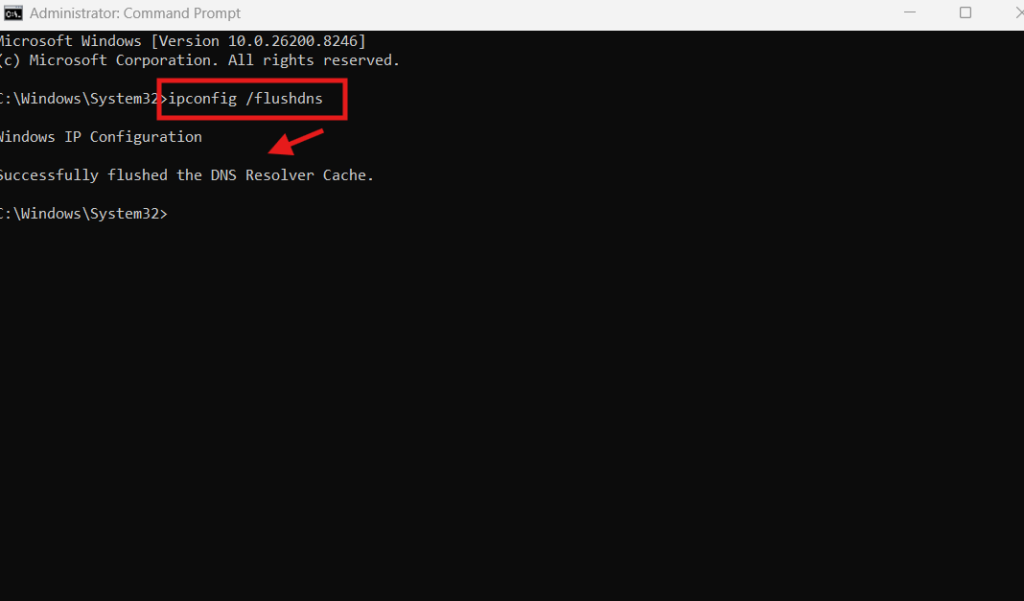
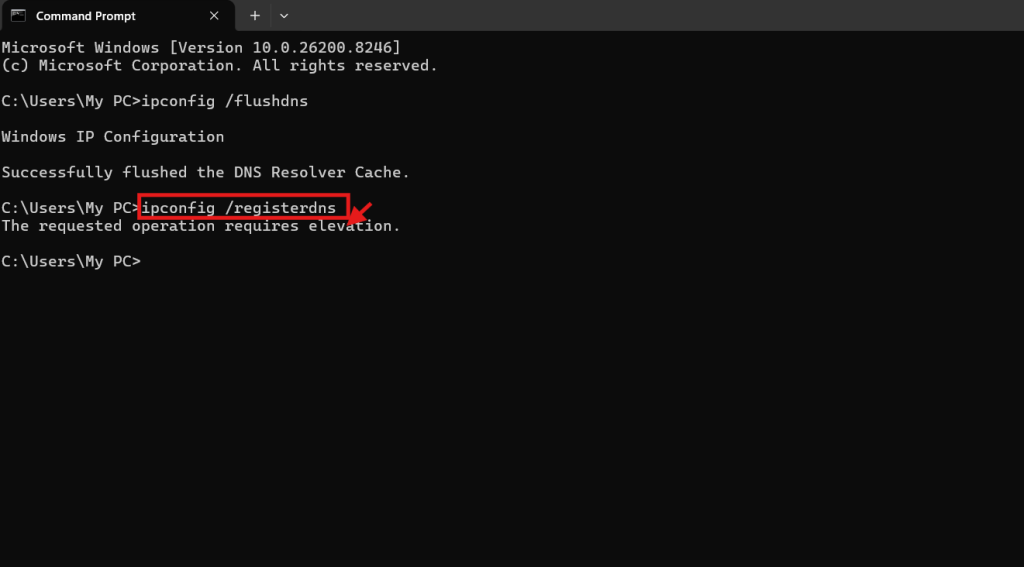
Even after changing DNS servers, stale cache entries can cause failures. Clear them out:- Open Command Prompt as administrator.
- Type ipconfig /flushdns and press Enter.
- Type ipconfig /registerdns and press Enter.
- Close Command Prompt and test your connection.
How to Check Your ISP’s DNS Status
Before switching DNS servers, it is worth confirming your ISP’s DNS is actually broken and not just slow:- Open Command Prompt as administrator.
- Type nslookup google.com and press Enter.
- If the response says “Server: UnKnown” or shows a timeout error, your ISP’s DNS resolver is failing.
- Note the default server address listed — this is your ISP’s DNS. You can look it up online to see if others are reporting outages.
- If it is confirmed as broken, switch to Google or Cloudflare DNS immediately using the steps above.
Enable DNS over HTTPS for Privacy and Speed
Windows 11 supports DNS over HTTPS (DoH) — an encrypted version of DNS that is faster and more private than standard DNS:- Open Settings → Network & Internet → WiFi → [Your network name].
- Under DNS server assignment, click Edit.
- Switch to Manual, enable IPv4.
- Enter 1.1.1.1 as preferred DNS and 1.0.0.1 as alternate.
- Under DNS over HTTPS, select “On (automatic template).”
- Click Save.
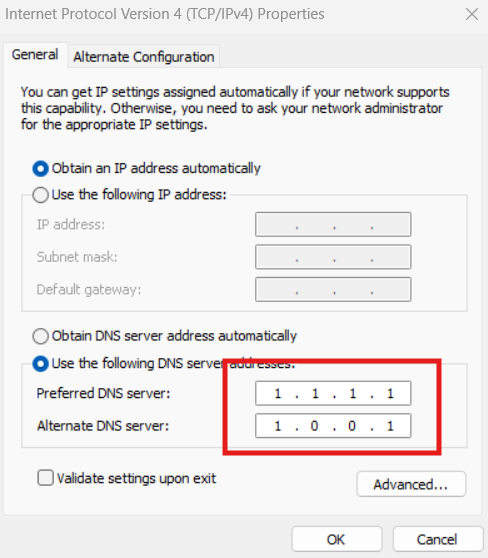
This small change can measurably improve DNS resolution speeds and adds an extra layer of security on public WiFi networks.
Pro Tip: Cloudflare DNS (1.1.1.1) is consistently ranked as the fastest public DNS resolver in the world by independent benchmarks. Switch to it instead of the default ISP DNS and you will often notice noticeably faster page loading times. Common Mistake: Changing the DNS in your browser settings instead of at the Windows system level. Browser DNS only affects that specific browser. Always change DNS at the adapter level in Windows Settings for a system-wide fix.Fix Internet Keeps Disconnecting on Windows
Random disconnections are one of the most frustrating internet problems on Windows. Your connection drops for 10–30 seconds, then returns — over and over again. Here are the most effective fixes.Fix the “Limited Connectivity” Loop
If Windows repeatedly shows “Limited Connectivity” or “Identifying network,” a corrupt DHCP lease is often the cause:- Open Command Prompt as administrator.
- Run these commands in order:
ipconfig /flushdns
ipconfig /renew
- Wait 30 seconds and check your connection status.
Disable IPv6 on Your Network Adapter
Conflicts between IPv4 and IPv6 cause disconnections on many Windows machines, especially on older routers:- Press Windows + R, type ncpa.cpl, press Enter.
- Right-click your WiFi or Ethernet adapter and select Properties.
- Uncheck Internet Protocol Version 6 (TCP/IPv6).
- Click OK and restart.
Adjust the Auto-Tuning Level
Windows uses a feature called “Receive Window Auto-Tuning” to optimize network performance. On some connections, it causes instability:- Open Command Prompt as administrator.
- Type: netsh int tcp set global autotuninglevel=disabled
- Press Enter and restart your PC.
- If it makes things worse, re-enable it with: netsh int tcp set global autotuninglevel=normal
Check for Windows Update Issues
A bad Windows update can silently break your network adapter. To check:- Go to Settings → Windows Update → Update History.
- Look for any updates installed around the time your connection problems started.
- Click Uninstall updates and remove the suspect update.
- Restart and test your connection.
Pro Tip: Download and install the free tool WinMTR to run a real-time trace of your connection. It shows exactly where packet loss is happening — on your PC, your router, or your ISP’s network. This tells you instantly if the problem is yours to fix or your ISP’s problem to fix. Common Mistake: Blaming Windows when the router is actually the problem. If multiple devices disconnect at the same time, the router’s DHCP lease table may be full or corrupted. Log into your router’s admin panel (usually 192.168.1.1) and try a factory reset.Fix Internet Connection Problems Caused by Drivers and Adapters
Corrupted or outdated network drivers are the single most common cause of persistent internet connection problems on Windows. Fixing your drivers can resolve issues that no amount of settings tweaking will cure.How to Update Your Network Adapter Driver
Always download drivers from the manufacturer’s official website — never trust third-party driver sites:- Find your adapter manufacturer first. Go to Device Manager → Network Adapters and note the name (e.g., “Intel Wi-Fi 6 AX200” or “Realtek PCIe GbE Family Controller”).
- Visit the manufacturer’s website:
- Intel: intel.com/content/www/us/en/support/detect.html
- Realtek: realtek.com/en/component/zoo/category/network-interface-controllers
- Laptop makers: Search “[brand] support drivers” (Dell, HP, Lenovo, ASUS, etc.)
- Download the latest driver for your Windows version.
- Run the installer and follow the prompts.
- Restart your PC after installation.
How to Roll Back a Network Driver
If your internet stopped working after a recent driver update, rolling back often fixes it instantly:- Open Device Manager → Network Adapters.
- Right-click your adapter and select Properties.
- Click the Driver tab.
- Click Roll Back Driver if the button is available.
- Follow the prompts and restart your PC.
Reinstall Your Network Adapter from Scratch
If updating and rolling back both fail, a clean reinstall is your best option:- Open Device Manager → Network Adapters.
- Right-click your adapter and select Uninstall device.
- Check “Delete the driver software for this device” if the option appears.
- Click Uninstall.
- Restart your PC. Windows will automatically detect and reinstall the adapter on boot.
- If it doesn’t install automatically, run the manufacturer’s driver installer you downloaded in the previous section.
Use Intel Driver & Support Assistant or Lenovo System Update
Major PC manufacturers offer dedicated tools that make driver updates effortless and safe:- Intel users: Download the Intel Driver & Support Assistant at intel.com. It scans your hardware, identifies all Intel components, and downloads only verified compatible drivers — including your WiFi adapter.
- Lenovo users: Use Lenovo System Update (available in Lenovo Vantage). It pulls drivers directly from Lenovo’s tested and certified driver database.
- Dell users: Use Dell SupportAssist. It runs in the background and alerts you when new drivers are available specifically for your model.
- HP users: Use HP Support Assistant for the same purpose.
Check for Physical Adapter Problems
If software fixes are not working, the hardware itself may be the issue. Here is how to check:- Open Device Manager → Network Adapters.
- Look for any adapter showing a yellow warning triangle or red X. These symbols indicate hardware or driver failure.
- If your WiFi adapter is missing from the list entirely, press Action → Scan for hardware changes to force Windows to detect it.
- If the adapter is still missing after a reboot, it may have physically failed or become unseated (on desktops). On laptops, check if your WiFi is disabled via a physical hardware switch or function key combination (often Fn + F2 or Fn + F12).
Pro Tip: Intel users should use the Intel Driver & Support Assistant tool (downloadable from Intel’s website). It automatically detects your hardware and downloads only compatible, tested drivers. It is far more reliable than Windows Update for keeping your network adapter current. Common Mistake: Using Windows Update to find driver updates and assuming it has the latest version. Windows Update is notoriously slow to push new drivers. Always check the manufacturer’s website directly for the most current and stable release.Advanced Network Troubleshooting on Windows (2026)
If none of the previous fixes resolved your internet connection problem on Windows, these advanced methods go deeper into the system. These are the same techniques used by network engineers and IT professionals.Check and Reset Windows Firewall Settings
Windows Firewall sometimes blocks internet access after updates or malware removal. Resetting it to defaults clears all bad rules:- Press Windows + S and search for Windows Defender Firewall.
- Click Restore defaults in the left panel.
- Click Restore defaults again to confirm.
- Restart your PC and test the connection.
- In Windows Defender Firewall, click Allow an app or feature through Windows Defender Firewall.
- Make sure your browser (Chrome, Edge, Firefox) has both Private and Public boxes checked.
Scan for Malware That May Be Blocking Your Connection
Malware frequently hijacks network settings — changing DNS servers, blocking connections, or redirecting traffic:- Open Windows Security (search for it in the Start menu).
- Click Virus & threat protection → Quick scan.
- If the quick scan finds nothing but problems persist, run a Full scan.
- Additionally, download Malwarebytes Free and run a separate scan. Malwarebytes catches threats Windows Security misses.
Check Your Hosts File for Corruption
The Windows hosts file can be modified by malware or bad software to block websites. Checking it is a critical advanced step:- Open Notepad as administrator (right-click Notepad → Run as administrator).
- Go to File → Open and navigate to: C:\Windows\System32\drivers\etc\hosts
- Set the file filter to All Files to see the hosts file.
- The file should contain only lines starting with # (comments). Any other entries — especially strange IP addresses — may be malicious.
- Delete any suspicious lines, save the file, and restart.
Disable Third-Party VPNs and Proxy Settings
VPNs and proxies that were not fully uninstalled leave broken network configurations behind:- Open Settings → Network & Internet → Proxy.
- Make sure “Use a proxy server” is switched Off.
- Also turn off “Automatically detect settings” — this setting can cause slow connections by pinging WPAD servers.
Use Event Viewer to Diagnose Network Errors
Windows Event Viewer logs every network error with detailed codes that point to the exact cause. Most users never check it — but it is a goldmine of diagnostic information:- Press Windows + S and search Event Viewer. Open it.
- In the left panel, go to Windows Logs → System.
- Click Filter Current Log in the right panel.
- In the Event Sources dropdown, select Dhcp-Client and Netprofm.
- Click OK and look through recent error entries.
- Note any error codes you see (e.g., Event ID 4199 indicates an IP address conflict; Event ID 1014 indicates DNS name resolution failure).
- Search the error c0d3 at Microsoft’s support site for a targeted fix.
Run System File Checker and DISM
Corrupted Windows system files can break network functionality in ways that look like a driver or settings problem. The System File Checker repairs them automatically:- Open Command Prompt as administrator.
- Type sfc /scannow and press Enter. Wait for the scan to complete — it takes 5–10 minutes.
- If SFC reports corrupted files it could not fix, run DISM next:
- Wait for DISM to complete (this can take 10–20 minutes and requires an internet connection).
- Run sfc /scannow one more time after DISM finishes.
- Restart your PC and check your connection.
Pro Tip: Open Resource Monitor (search for it in Start), click the Network tab, and look at “Network Activity.” This shows every process currently using your internet connection. If something unfamiliar is consuming all your bandwidth, you have likely found your problem. Common Mistake: Disabling Windows Firewall completely to “test” if it is causing the problem. This leaves your PC exposed. Instead, use the “Restore defaults” option — it resets bad rules while keeping you protected.Frequently Asked Questions
Q: Why does my Windows PC say “No Internet Access” when other devices connect fine?
A: This means the issue is specific to your PC, not your router. The most common causes are a corrupted IP configuration, bad DNS settings, or an outdated network driver. Start with ipconfig /flushdns and then check your DNS settings in Network Adapter Properties.Q: How do I fix “Unidentified Network” in Windows 10 or 11?
A: This usually means Windows received an incorrect IP address from your router. Open Command Prompt as administrator and run ipconfig /release followed by ipconfig /renew. If it persists, try disabling IPv6 in your adapter’s Properties and restarting.Q: Why does my WiFi keep disconnecting every few minutes on my laptop?
A: Windows is likely putting your WiFi adapter to sleep to save battery. Open Device Manager, find your WiFi adapter, go to Properties → Power Management, and uncheck “Allow the computer to turn off this device to save power.” This fix works on the vast majority of laptops.Q: Will resetting network settings delete my files?
A: No. Network Reset in Windows only removes saved WiFi passwords, network configurations, and adapter settings. Your personal files, programs, and Windows settings are completely untouched. You will simply need to reconnect to your WiFi and re-enter your password after the reset.Q: My internet works on Chrome but not on other apps or games. Why?
A: This is almost always a firewall or proxy issue. Open Windows Defender Firewall, click “Allow an app or feature through Windows Defender Firewall,” and make sure the affected application is checked for both Private and Public networks. Also check Settings → Network → Proxy and make sure no proxy is active.Q: How do I fix “DNS server not responding” on Windows?
A: Open your network adapter Properties, go to IPv4 settings, and manually set your DNS to 8.8.8.8 (Google) or 1.1.1.1 (Cloudflare). Then open Command Prompt as administrator and run ipconfig /flushdns. Restart your PC and the error should be gone.Q: Can a Windows Update break my internet connection?
A: Yes, it happens. Go to Settings → Windows Update → Update History → Uninstall updates, and look for updates installed around the time your internet broke. Remove the suspect update, restart, and check your connection. You can reinstall the update later once Microsoft releases a fix.Conclusion
Dealing with a broken internet connection on Windows does not have to be a nightmare. In this guide, you learned the most effective methods to fix internet connection problems on Windows — from simple quick fixes like restarting your router and toggling Airplane Mode, to advanced techniques like resetting the TCP/IP stack, updating network drivers, and auditing your hosts file.Here are the top 3 takeaways to remember:
- Always identify where the problem is first — your PC, your router, or your ISP — before applying any fix.
- The netsh winsock reset and ipconfig /flushdns combo in Command Prompt resolves the majority of software-level connection failures.
- Outdated or corrupted network drivers are the hidden cause of many persistent internet issues — always keep them updated from the manufacturer’s website.


